magick-builder
🧙♂️ PowerShell Magick Builder

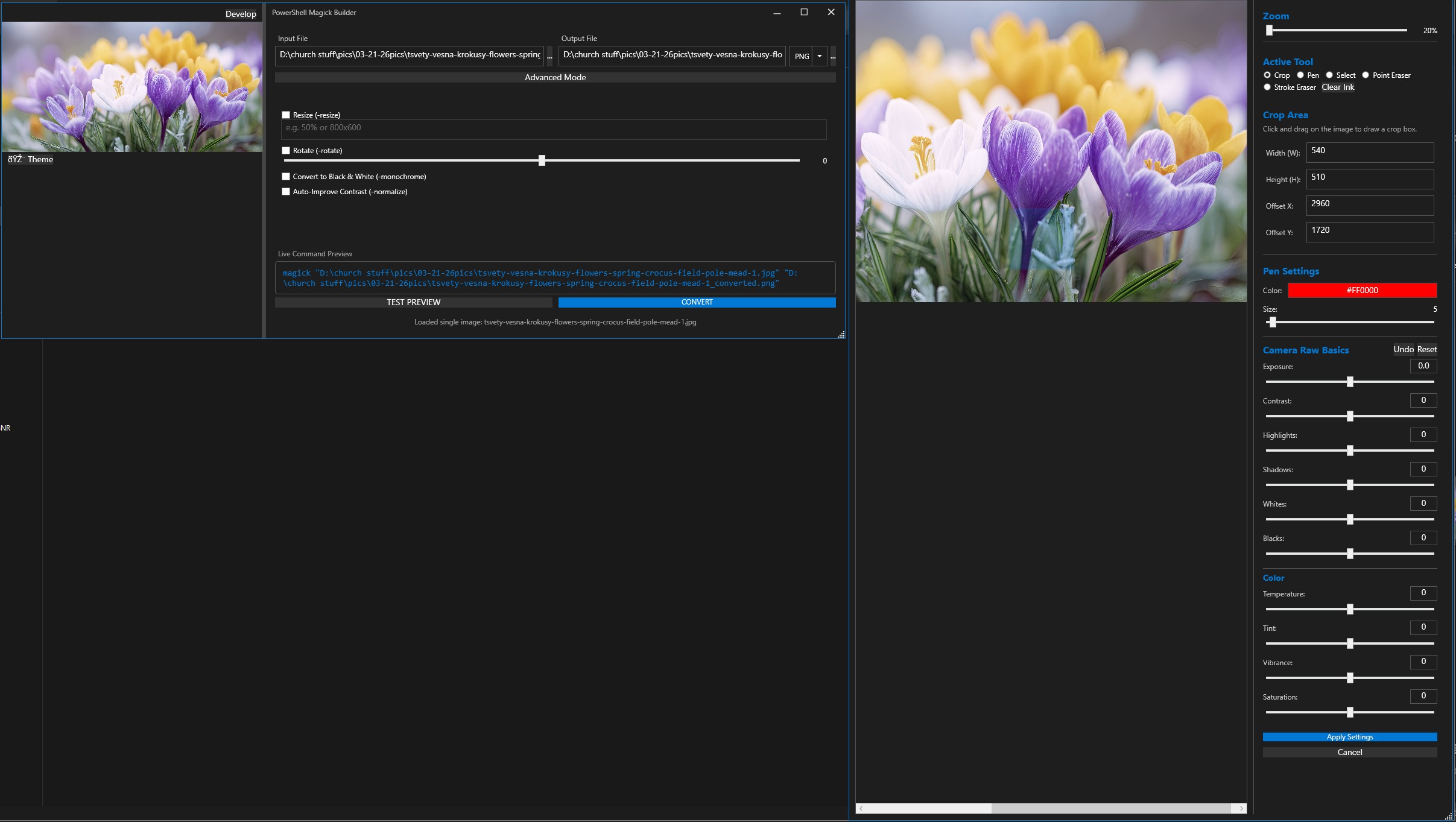
A powerful, native Windows GUI for visually building and executing complex ImageMagick commands, completely contained within PowerShell scripts.
📖 Overview
This project provides the unfiltered power of the ImageMagick framework wrapped in a rich graphical interface (built entirely in WPF via PowerShell). It allows you to explore over 100 of ImageMagick’s most common and powerful flags without needing to memorize command-line syntax, and features live interactive previews of your edits.
No compiled binaries, Visual Studio, or heavy runtimes are required—just standard Windows PowerShell.
✨ Features
- Automated Setup: Run a single script to fetch all dependencies. No more hunting down exact
.dllversions or manual portable setups. - Comprehensive UI: Access basic tweaks (resize, rotate) up to advanced magic (morphology, liquid rescaling, halftones) organized into logical, dynamic categories.
- Interactive Previews:
- Test Previews: Instantly apply your current command combination to the preview canvas before executing the final file.
- Develop Module: A “Camera Raw” style interactive popup with live-updating sliders for Exposure, Highlights, Shadows, Temperature, and more.
- Interactive Cropping: Mouse-driven click-and-drag cropping directly on the image canvas.
- Batch Processing: Drag and drop single files or entire folders. The interface automatically adapts to batch mode, allowing you to process hundreds of images at once.
- Live Command Output: View the exact
magickcommand being generated in real-time. Great for learning ImageMagick syntax!
🚀 Getting Started
We’ve completely automated the dependency management. You no longer need to manually assemble a bin folder.
Step 1: Install Dependencies
- Download or clone this repository to your local machine.
- Right-click
install.ps1and select Run with PowerShell.- Note: If prompted about execution policies, you may need to type
Yto allow the script to run.
- Note: If prompted about execution policies, you may need to type
What install.ps1 does:
- Checks if the official ImageMagick CLI is installed on your system. If not, it uses
winget(Windows Package Manager) to silently install it globally. - Queries NuGet for the absolute latest version of the Magick.NET C# libraries.
- Downloads, extracts, and automatically builds the
binfolder with the exact.dllfiles the GUI needs for its interactive preview features.
Step 2: Launch the App
Once installation is complete, simply run the builder:
- Right-click
magick-builder.ps1and select Run with PowerShell. - The GUI will launch automatically.
⚙️ Core Workflow
- Load an Image: Drag and drop an image (or a folder of images) onto the interface, or use the
...browse button. - Toggle Settings: Switch between Simple Mode and Advanced Mode to explore the various categories of ImageMagick flags.
- Use the Develop Tool: Right-click the image preview or click the “Develop” button to open the interactive adjustment and cropping canvas.
- Test the Output: Click the
TEST PREVIEWbutton to apply your current settings to the preview window in real-time. - Convert: Hit the large
CONVERTbutton to execute the native ImageMagick CLI engine and process your file(s).
🛠 Troubleshooting
“Running scripts is disabled on this system” If you double-click or run the scripts and immediately see a red error regarding Execution Policies, open a PowerShell window as Administrator and run:
Set-ExecutionPolicy RemoteSigned -Scope CurrentUser
winget is not recognized
If install.ps1 fails because winget is missing, you may be on an older version of Windows 10. You can install it via the Microsoft Store (search for “App Installer”) or manually install ImageMagick from their official website.
Blank Previews / WPF Errors
If you recently updated the bin folder and things are acting strangely, close the PowerShell window entirely and relaunch the script. PowerShell holds onto loaded .dll files for the duration of the session.
📜 License
This project is open-source and released under the MIT License.
ImageMagick and Magick.NET are distributed under their respective licenses (Apache 2.0 / ImageMagick License).
Built by brizzle